Portraits and profile photos
How to choose and change your LinkedIn photo background
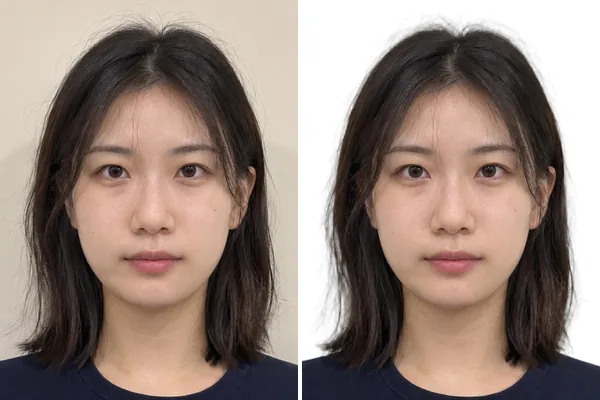
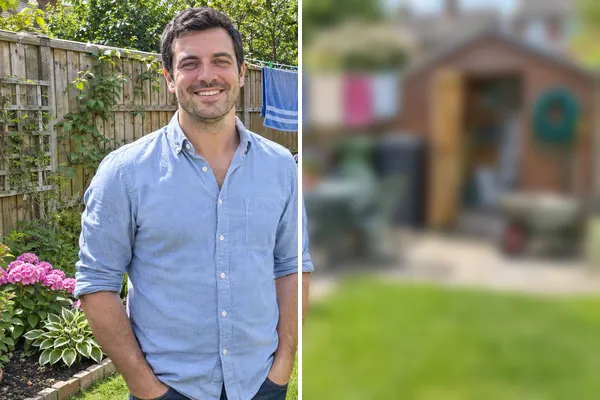
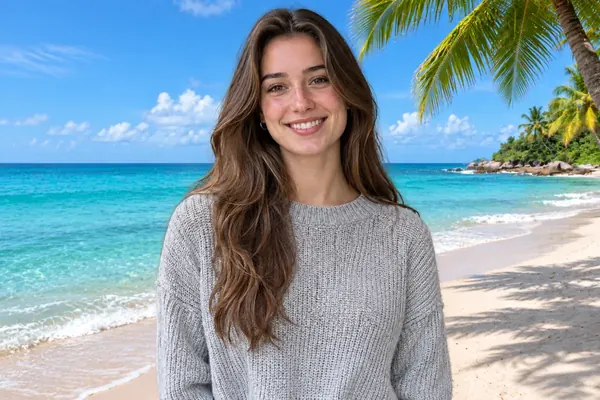
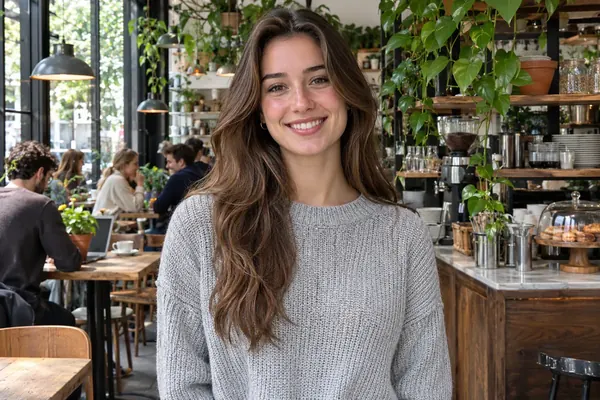
The best LinkedIn photo background is a simple one that keeps the attention on your face: a plain light grey or soft-coloured backdrop, or a softly blurred office, bookshelf or greenery. LinkedIn’s own advice is to avoid distracting backgrounds and let your face fill about 60% of the frame. If your best photo was taken in a cluttered room, open the Change Background editor, make the canvas square, add the photo, remove the background and pick a backdrop from the Gallery. Change only the background: LinkedIn requires your photo to reflect your likeness.
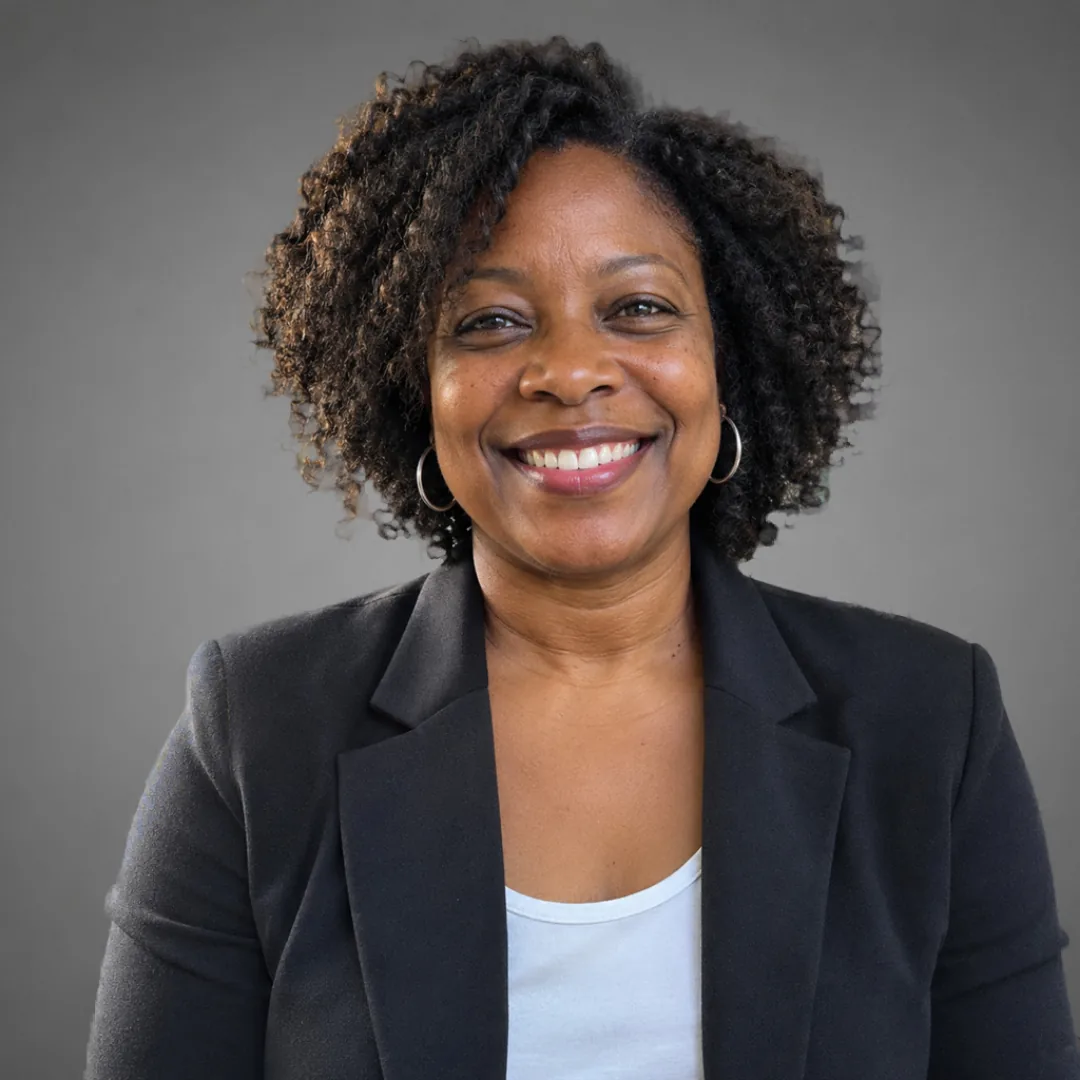
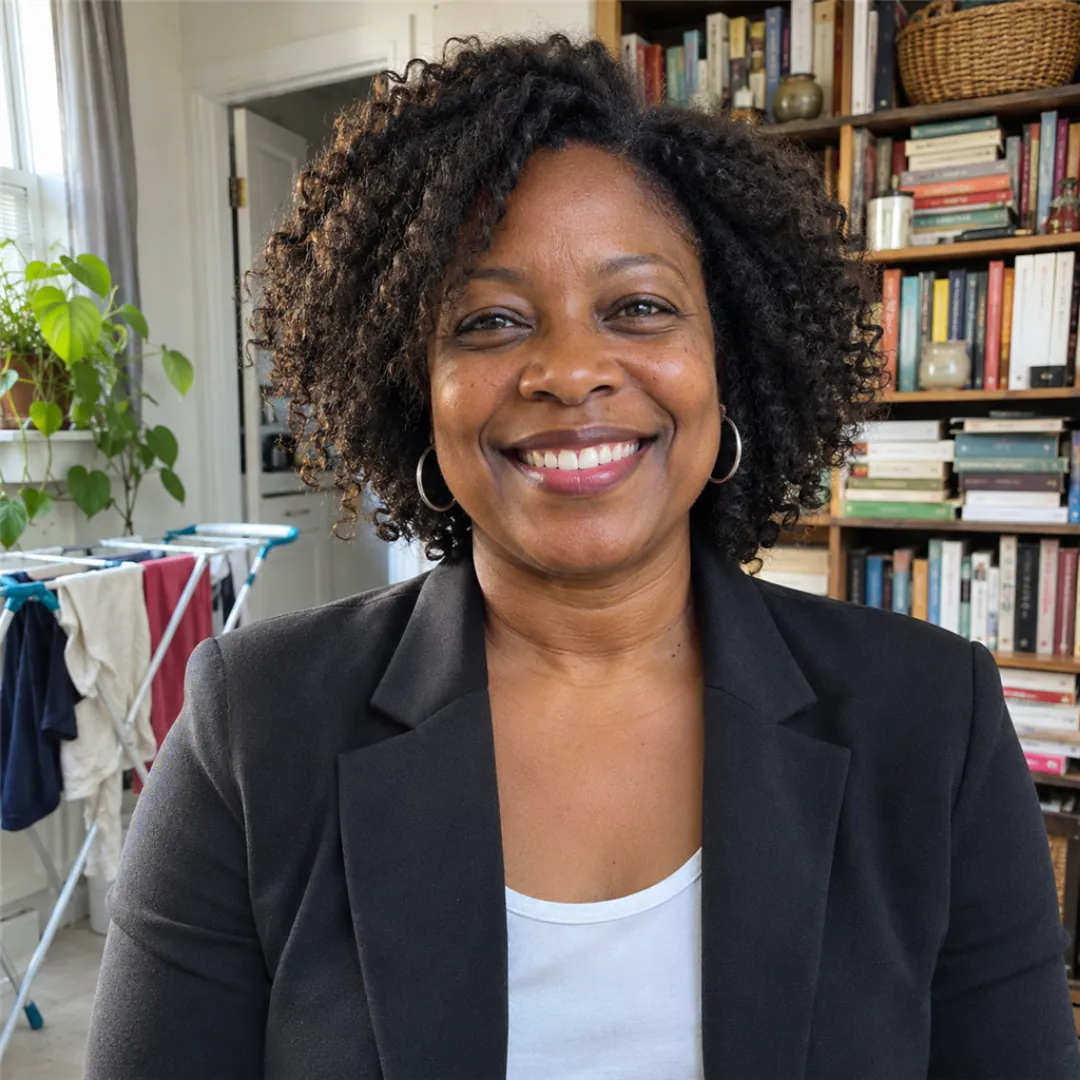 BeforeAfter
What is the best background for a LinkedIn profile photo?
One that doesn’t compete with your face. LinkedIn’s own tips say: “Avoid distracting backgrounds. You don’t want anything to distract from your face.” Its sales pages suggest “a neutral background or relevant work setting”, and the career offices of MIT and Yale give the same advice.

Right:A softly blurred office.
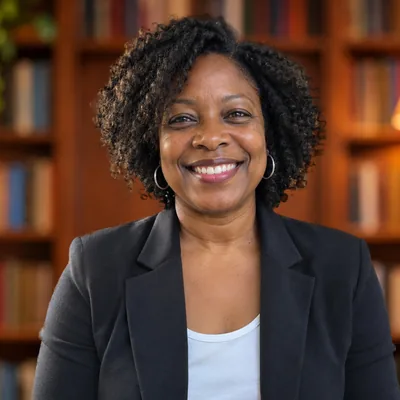
Right:A blurred bookshelf.

Right:Blurred greenery.
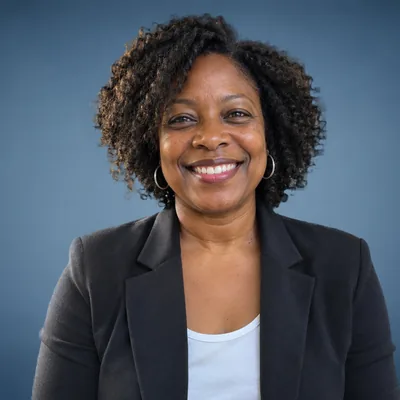
Right:A muted studio colour.
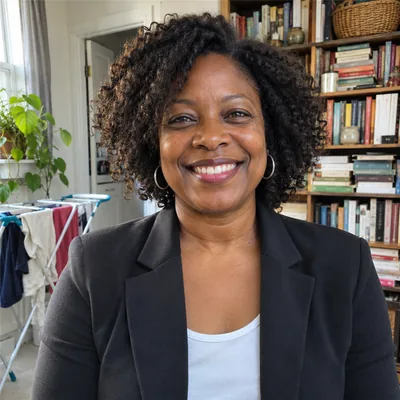
Wrong:Clutter draws the eye away.
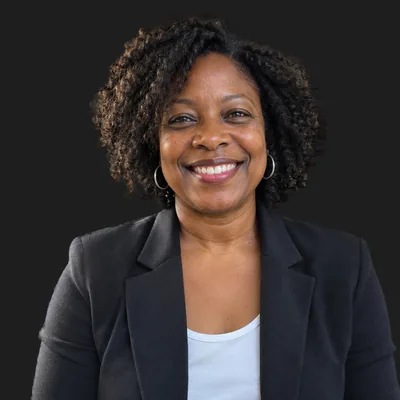
Wrong:Too dark: hair and blazer merge into it.
Research points the same way. In a 2023 study in PLOS ONE, people rated faces in front of different video-call backgrounds: a bookcase, plants and a blank wall scored highest for competence, and blurring a messy home helped. Smiling, though, raised the ratings far more than any background did. The study used video-call backgrounds, not LinkedIn photos, but the lesson carries over.
First impressions are fast: in a Princeton study, judgements made after seeing a face for a tenth of a second matched closely those made with no time limit.
How do you change the background of your LinkedIn photo?
Start with a sharp, well-lit photo of you from the chest up, facing the camera. The free Change Background editor does the rest:
Make the canvas square
Open Change Background, click Canvas Size, choose 1080 × 1080 Square (Instagram) and click Apply.
Add your photo
Click Add Photo and choose your photo.
Remove the background
Click Remove BG and choose Hair & fur for curly or loose hair, or Smooth edges for neat hair.
Pick a backdrop
In the Background panel, open Gallery and choose People: it starts with studio backdrops and softly blurred offices. For a plain colour, open Color instead.
Fill the frame
Drag the photo’s corners until your face fills about 60% of the frame, with a little space above your head.
Download
Click Download, choose JPG and save the photo. It is free.
LinkedIn shows profile photos in a circle, so keep your face in the middle and check that nothing important is near the corners.
What size should a LinkedIn profile photo be?
LinkedIn’s help pages give the limits, and other work tools have their own:
| Where | What the platform asks for |
|---|---|
| LinkedIn profile photo | PNG or JPG, no GIF; up to 8 MB; between 400 × 400 and 7680 × 4320 pixels. |
| LinkedIn cover image | 1584 × 396 pixels recommended; JPG or PNG under 8 MB. |
| GitHub | PNG, JPG or GIF under 1 MB and smaller than 3000 × 3000 pixels; about 500 × 500 recommended. |
| Slack | At least 512 × 512 pixels and no larger than 1024 × 1024. |
| Zoom | JPG, GIF or PNG smaller than 2 MB. |
| Google Workspace | JPEG or PNG up to 5 MB; photos are scaled automatically. |
A square JPG of about 1000 × 1000 pixels, saved under 1 MB, fits every platform in the table. Use a background baked into the JPG rather than a transparent PNG, since you can’t be sure what a platform puts behind transparency.
Is it OK to edit your LinkedIn photo?
Yes, within limits. LinkedIn’s rules say “your profile photo must reflect your likeness”, and its community policies ask members not to post “misleading or deceptive information about yourself”. LinkedIn also screens for AI-generated faces: in 2023 its engineers reported a model that catches 99.6% of a common type of AI-generated profile photo.
| Fine | Misleading |
|---|---|
| Cropping, and correcting light and colour | Changing the shape of your face or body |
| Replacing or blurring a cluttered background | Changing your skin tone, eye colour or age |
| LinkedIn’s own filters, used lightly | An AI-generated face presented as a photo of you |
Recruiters notice, too. In a 2024 survey by Ringover, a company that sells phone software, two-thirds of 1,087 recruiters said they would be put off by a candidate if they recognised an AI headshot. A real photo with a new background avoids that question: your face is untouched.
How do you take a good headshot for LinkedIn?
- Recent and like you: LinkedIn asks for a photo from “within the past few years”, with your current hair and glasses.
- Just you: no friends, children or pets, and no cropped-out shoulder of someone else.
- Someone else takes it: stand a few steps back and let them zoom in a little, which avoids the distortion of a close selfie.
- Soft light: a window to your left or right, or open shade outdoors. LinkedIn notes that direct sunlight can make pictures look blown out.
- Work clothes in solid colours, which LinkedIn says “tend to do best on camera”.
- Smile. In the PLOS ONE study, a smile mattered more than any background.
Let a friend choose. A 2017 study found that photos picked by other people made better impressions than the ones people picked of themselves.
Frequently asked questions
What is the best background for a LinkedIn photo?
A simple one: plain light grey, white or a muted colour, or a softly blurred office, bookshelf or greenery. It should stand out from your hair and clothes and not distract from your face.
Should my LinkedIn photo have a blurred background?
It can. LinkedIn asks for a background that doesn’t distract, and a soft blur of a tidy office or greenery does that. A plain backdrop works just as well.
What size should a LinkedIn profile picture be?
Between 400 × 400 and 7680 × 4320 pixels, PNG or JPG, up to 8 MB. A square of about 1000 × 1000 pixels is a good choice.
Can I use an AI headshot on LinkedIn?
LinkedIn requires your photo to reflect your likeness and screens for AI-generated faces, and many recruiters are put off by AI headshots. Replacing only the background keeps your real face.
What colour background is best for a headshot?
Light grey, white or a soft blue suit most people. Choose one that contrasts with your hair and clothes: dark hair and a dark jacket disappear against black.
Does a profile photo matter on LinkedIn?
LinkedIn says members with a profile photo receive up to 2X more profile views.
Is it free?
Yes. In the Change Background editor, removing the background, choosing a backdrop and downloading the photo are free.
Sources
- LinkedIn Help: Photo won’t upload to your profile linkedin.com
- LinkedIn Help: Add or change the cover image on your profile linkedin.com
- LinkedIn Help: Profile photo guidelines linkedin.com
- LinkedIn Help: Create a good LinkedIn profile linkedin.com
- LinkedIn: Professional Community Policies linkedin.com
- LinkedIn Talent Blog: Tips for a professional LinkedIn profile photo linkedin.com
- LinkedIn Sales Solutions: Upload a professional photo business.linkedin.com
- LinkedIn Engineering: New approaches for detecting AI-generated profile photos linkedin.com
- MIT Career Advising and Professional Development: LinkedIn capd.mit.edu
- Yale Office of Career Strategy: Building your LinkedIn profile ocs.yale.edu
- PLOS ONE: Virtual first impressions (Cook, Thompson and Ross, 2023) journals.plos.org
- PubMed: First impressions after a 100-ms exposure to a face (Willis and Todorov, 2006) pubmed.ncbi.nlm.nih.gov
- Cognitive Research: Choosing face, the curse of self in profile image selection (2017) cognitiveresearchjournal.springeropen.com
- Ringover: Recruiters and AI headshots survey (2024) ringover.com
- GitHub Docs: Profile reference docs.github.com
- Slack Help: Upload a profile photo slack.com
- Zoom Support: Changing your profile picture support.zoom.com
- Google Workspace Admin Help: Add or change a user’s profile photo knowledge.workspace.google.com
The headshot is AI-generated. Its background was removed and replaced with ChangeBackground’s own editor and gallery backdrops, exactly as described above; the face was not edited. LinkedIn’s rules come from its own pages, checked on 25 November 2026. We are not affiliated with LinkedIn.