Portraits and profile photos
How to blur the background of a photo
To blur the background of a photo you have already taken, upload it to Remove Background, open the Blur tab and drag the slider: the person stays sharp and everything behind them is blurred. To get the blur while you shoot, use Portrait mode on a phone, or on a camera the widest aperture (the smallest f-number), a longer lens, and as much distance as you can between your subject and the background. Software blur has to guess where the subject ends, so check the hair, the hands and the gaps between the arms and the body.

 BeforeAfter
How do you blur the background of a photo online?
This works on any photo with a clear subject, such as a person, a pet or a product, including photos taken long ago:
Upload the photo
Open Remove Background and upload the photo, or drop it on the page. JPG, PNG and HEIC files up to 30 MB work.
Choose the edges
Smooth edges suits people with neat hair and objects. For loose or curly hair and pets, switch to Hair & fur.
Open the Blur tab
The original background comes back behind your subject, blurred.
Set the strength
Drag the Blur slider. A light blur keeps the place recognisable; a strong one turns it into soft colour. Brightness makes the background darker or lighter.
Download
Download the blurred photo as the free preview, or at full size with Full resolution for 1 credit.

Why does the whole background look equally blurred?
The Blur tab blurs everything behind the cut-out by the same amount, like a printed backdrop. A camera lens blurs things more the further they are behind the subject; DXOMARK, a camera testing lab, notes that in a convincing result “blur intensity should change with depth”.
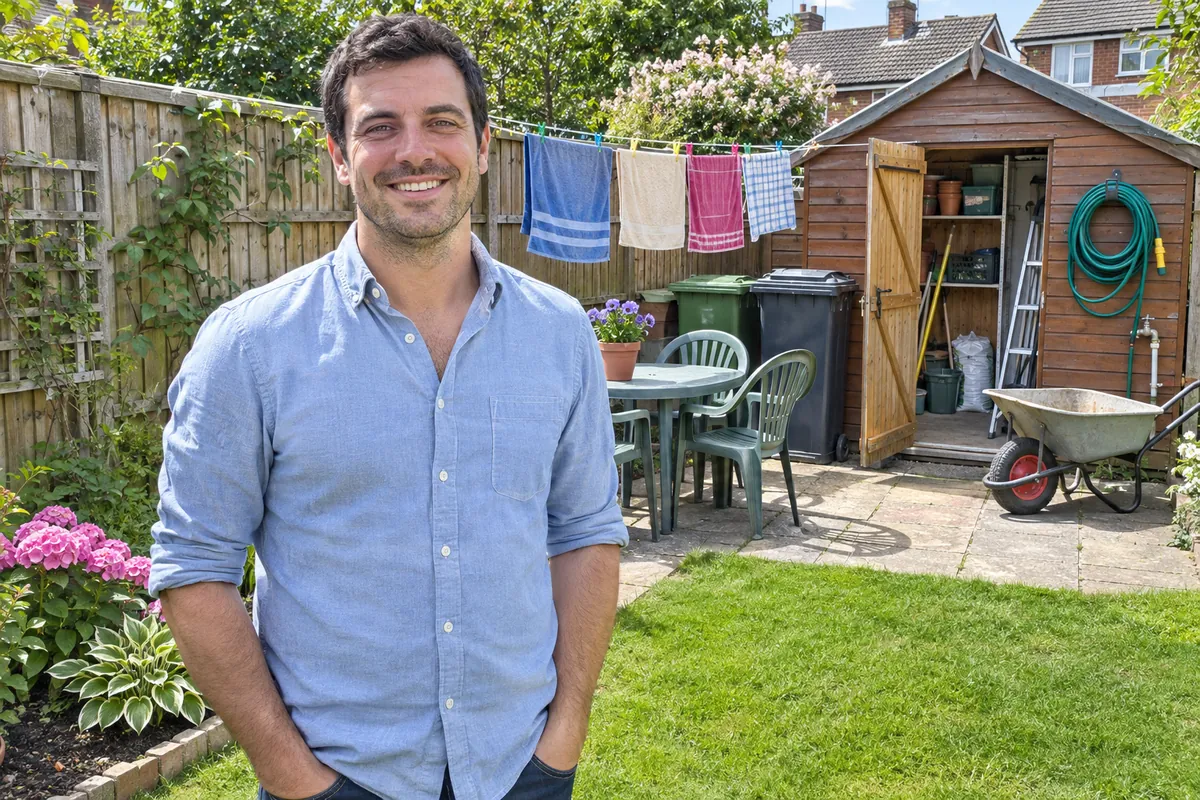
Behind a person standing a few metres in front of a fence or a wall, the difference hardly shows. It shows where the ground runs into the distance: the lawn at someone’s feet comes out as blurred as the far end of the garden. Frame the photo from the waist up, as in the example, and it won’t be noticed.
How do you blur the background on a phone?
Phone cameras have “a small, fixed-size aperture”, Google’s researchers explain, so nearly everything is in focus. Portrait mode recognises the subject and blurs the rest in software, and most phones let you change the blur after you’ve taken the photo:
| Phone | While you shoot | Afterwards |
|---|---|---|
| iPhone | Camera > Portrait. To set the strength, tap Depth and drag the Depth Control slider. | Photos > Edit > Portrait, then drag the Depth Control slider. Tap Portrait Off to remove the blur. On iPhone 15 and later, photos of people, dogs and cats taken in Photo mode can be made into portraits afterwards. |
| Google Pixel | Camera > Portrait. | Google Photos > Edit photo > Tools > Blur, then move the Blur slider. |
| Samsung Galaxy | Camera > PORTRAIT, choose the Blur effect and set it with the slider. | Edit the photo in Gallery. With One UI 8, Galaxy AI can suggest Background blur for photos of people or pets that weren’t taken in Portrait mode. |
Menu names move between software versions, so look for “Portrait” or “Blur” if a step looks different. Portrait mode also has limits: the iPhone camera warns when you are too close, too far away or it is too dark, and Google’s researchers wrote that depth sensing on Pixel phones needs at least 20 cm and works best within about a metre.
How do you blur the background with a camera?
With a camera the blur is real, made by the lens. Nikon, Fujifilm and Canon give the same four tips:
- Use the widest aperture, the smallest f-number your lens has. Nikon suggests at least f/2.8, with f/2, f/1.8 or f/1.4 ideal, in Aperture Priority or Manual mode.
- Zoom in or use a longer lens. Fujifilm: at 18 mm you get less blur than at 90 mm.
- Get closer to your subject. The closer you focus, the shallower the sharp zone.
- Move the subject away from the background. Canon: “The further the distance between the subject and background, the more blurred the background will look.”
Focus on the eyes. With a very wide aperture only a thin slice is sharp, and Fujifilm warns that a small focusing error can leave part of the face soft.
Moving your subject a few steps away from the wall behind them helps with every method: the lens blurs the background more, and the phone finds it easier to tell the person from the background.
What goes wrong with software blur?
Every software blur, on a phone or online, first decides which pixels belong to the subject. Google’s researchers list low light, blank walls and “frizzy hair” among the hard cases, and DXOMARK found that mistakes “usually result in sharp zones in the background and/or blurred zones on the subject”. Zoom in and check:
- Hair and ears: loose strands blurred away, or a sharp halo of old background around the head.
- Hands and the gaps between arms and body: background that should be blurred but stayed sharp.
- Things the subject holds or wears, such as a bag, a cup or glasses: they should be as sharp as the subject.
- Too much blur: a very strong blur makes any edge mistake stand out and can look like a cut-out on a backdrop.
If loose or curly hair looks cut out, switch to Hair & fur and check again.
When shouldn’t you blur the background?
- To hide private details. Microsoft warns that blurring a video-call background “may not prevent sensitive information from being visible”, and the same goes for photos: a house number or a screen can still be read through a light blur. Replace the background instead, or remove the detail with Remove Object.
- Marketplace main images. Amazon and many other marketplaces want the product on plain white. See Amazon product image requirements.
- Second-hand items and property. eBay asks sellers to “include closeups of blemishes, damage, or wear”, and California’s property listing rules forbid changing any real part of a home. Don’t blur away what a buyer should see.
- Profile photos. LinkedIn advises “a simple background” so that you are the focal point. A light blur works; a plain backdrop does too. See the LinkedIn photo background guide.
Frequently asked questions
How do I blur the background of a photo for free?
Upload it to Remove Background, open the Blur tab, drag the Blur slider and download the free preview.
Can I blur the background of a photo I’ve already taken?
Yes. Online it works on any photo with a clear subject. On iPhone 15 and later, photos of people and pets taken in Photo mode can be turned into portraits; on Pixel phones, use Blur in Google Photos.
Why does my blurred photo look fake?
Usually the blur is too strong, the edges of hair or hands are wrong, or the ground at the subject’s feet is as blurred as the far background. Use a lighter blur, frame from the waist up and check the edges.
Can I download the blurred photo in full resolution?
Yes. Full resolution downloads the photo as you see it, blurred background included, at the full size of your photo, for 1 credit; the preview download is free. On a phone, photos larger than about 16 megapixels are made 16 megapixels.
What is bokeh?
Bokeh, from the Japanese word for blur or haze, is the look of the out-of-focus parts of a photo. Lenses turn small lights in the background into soft discs.
Which f-number blurs the background most?
The smallest one, which means the widest aperture: f/1.8 blurs far more than f/8. A longer lens, a closer subject and a more distant background add to it.
Does blurring the background protect my privacy?
Not reliably. Text, faces and screens can stay recognisable through a light blur. To hide something, replace the background or remove the object.
Sources
- Nikon USA: Bokeh for beginners nikonusa.com
- Fujifilm X: Get beautiful bokeh fujifilm-x.com
- Canon India Support: How to blur the background of a photo in.canon
- Google Research: Portrait mode on the Pixel 2 and Pixel 2 XL research.google
- Google Research: Improvements to Portrait mode on the Pixel 4 research.google
- Apple Support: Use Portrait mode on your iPhone support.apple.com
- iPhone User Guide: Take portraits support.apple.com
- iPhone User Guide: Edit Portrait mode photos support.apple.com
- Pixel Camera Help: Take high quality photos support.google.com
- Samsung US: Use Portrait mode or Live Focus samsung.com
- Samsung Canada: Edit suggestions for photos samsung.com
- DXOMARK: Evaluating computational bokeh dxomark.com
- Microsoft Support: Change your background in Teams meetings support.microsoft.com
- eBay Seller Center: Photo tips ebay.com
- California Regional MLS: Digitally altered images FAQs kb.crmls.org
- LinkedIn Talent Blog: Tips for a professional LinkedIn profile photo linkedin.com
The backyard photo is AI-generated. Its background was blurred with ChangeBackground’s own Blur tab, exactly as described above. Phone and camera steps come from the makers’ own help pages, checked on 25 November 2026; menu names can differ on other software versions.