Products and online selling
How to take product photos at home, and edit them for free
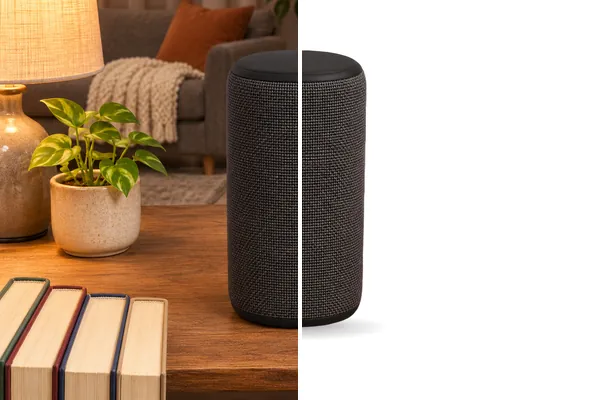
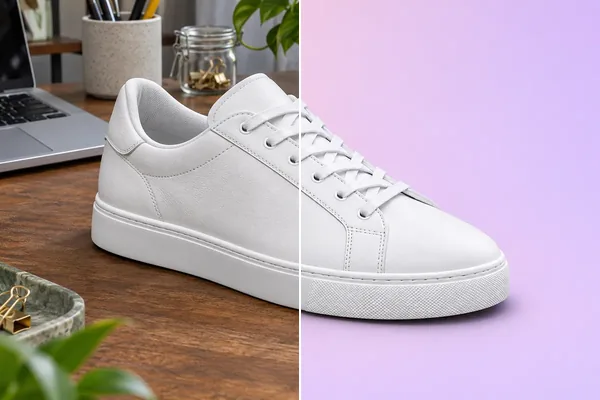
Good product photos need three things: soft light from a window, a steady phone and a clean background. Photograph each product from the front, the sides and close up, plus one photo that shows its size. Then make the main photo square, on pure white, with the product filling about 85% of the frame, as Amazon asks. This guide covers a home set-up that costs almost nothing, a shot list, the photo rules of the big marketplaces, and how to replace the background and add a natural shadow in your browser.
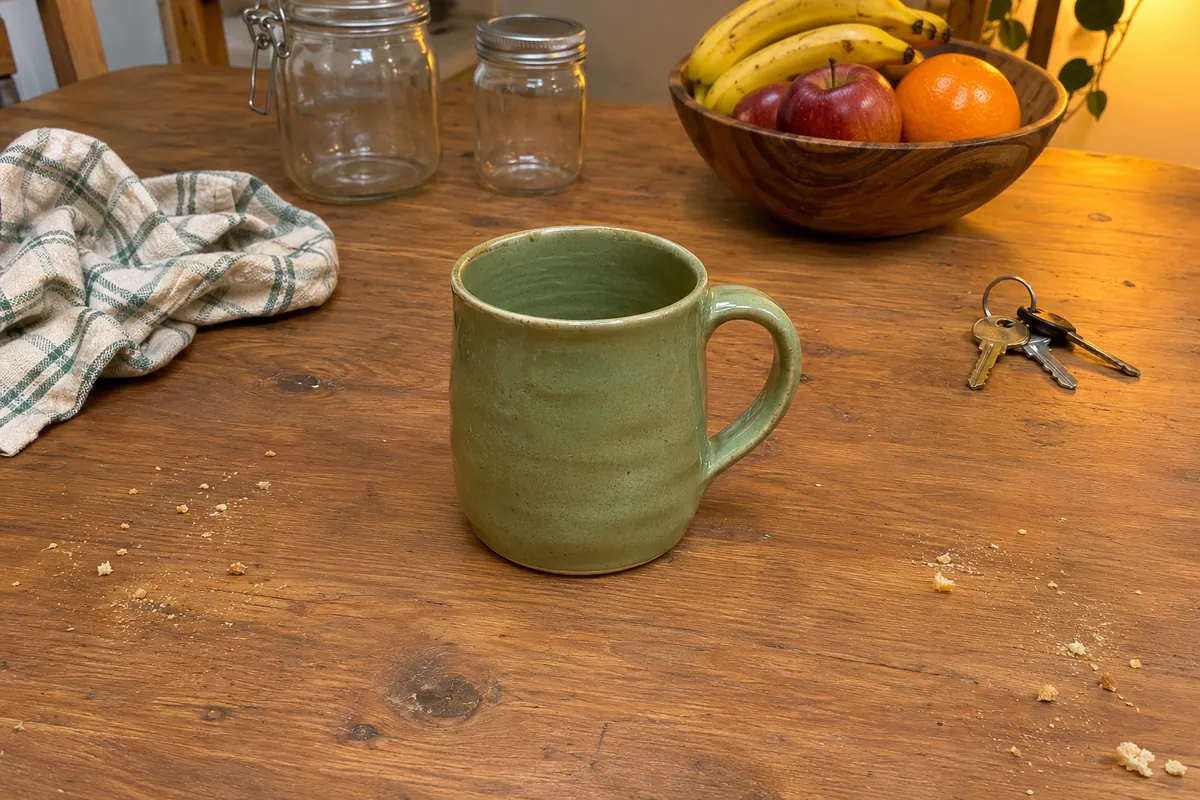 BeforeAfter
What do you need for a home product photo set-up?
Less than you might think: a table by a window, a sheet of white card or foam board bent into a curve, a second white card, and your phone on a small tripod. The curve, called a sweep, hides the line between the table and the wall, so the product seems to float on endless white.
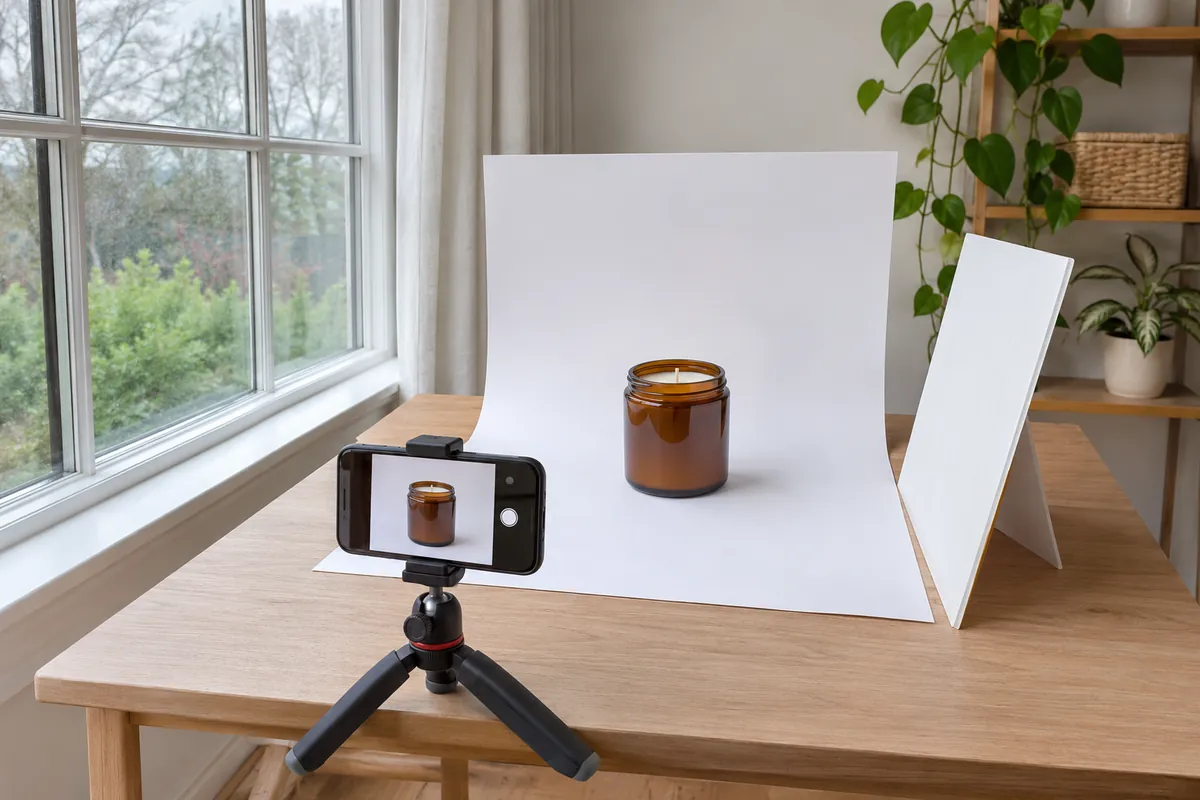
- Light from the side. Put the window to one side of the product and the white card on the other, to bounce light into the shadows. On a sunny day, hang a thin white curtain or shoot when the sun is not on the window.
- One kind of light. Turn off the ceiling lights and lamps. Daylight mixed with warm bulbs gives the photo a colour cast that is hard to remove.
- The main lens. Use the phone’s 1x or 2x camera, not the ultra-wide one, and step back a little: close up, the front of the product looks too big.
- Focus and steady. Tap the product on the screen to focus, and use the timer so touching the phone doesn’t shake it.
- A clean product. Wipe off dust and fingerprints, iron fabric, and take off price stickers. Close up, every speck shows.
Which product photos should you take?
Shoppers look at the photos first. In Baymard Institute’s usability testing, 56% of people started by exploring the product images, and 42% tried to judge the size of the product from them. So take more than the main photo:
| Photo | Why |
|---|---|
| Main photo | The whole product from the front or at an angle, on white. It is the photo shown in search results. |
| Every side | The back, the sides, the top or the bottom: whatever a buyer would turn over in a shop. |
| Close-ups | Texture, stitching, materials, buttons and connectors, and any wear on a used item. |
| Size | The product next to a hand or a familiar object, so buyers can see how big it is. |
| In use | The product where it is used: on a table, worn, in a kitchen. A lifestyle background can be added afterwards. |
| What’s in the box | Everything the buyer gets, laid out together. |
What are the photo rules on Amazon, eBay, Etsy, Shopify and Google?
Each marketplace publishes its own rules. These are the ones that matter for the main photo, as published on 25 November 2026; check the help page again before you photograph a whole catalogue.
| Marketplace | Background and framing | Size |
|---|---|---|
| Amazon | Pure white background (RGB 255, 255, 255). The product fills 85% or more of the frame. | 500 to 10,000 pixels on the longest side; more than 1,000 pixels on each side allows zoom. At least 6 images recommended. |
| eBay | No borders, added text or watermarks. No stock photos for used items. | At least 500 pixels on the longest side. |
| Etsy | At least one unedited photo of the actual item on a real background. Transparent parts of a PNG appear black. | At least 2000 pixels wide and high recommended; the first photo at least 635 pixels. |
| Shopify | Depends on your store’s theme. | 2048 × 2048 pixels usually displays best for square images; up to 5000 × 5000 pixels (25 megapixels) and under 20 MB. |
| Google Merchant Center | A solid white or light neutral background; the product fills 75% to 90% of the image. | 1500 × 1500 pixels or larger recommended; at least 500 × 500 pixels from 31 January 2027. |
A square of 2000 × 2000 pixels on pure white fits all five: it is large enough for Etsy and for zoom on Amazon, and close to Shopify’s 2048.
How do you give a product photo a white background?
You don’t need a perfect white set-up: shoot on any plain surface, then replace the background. In the free Change Background editor it takes a minute:
Make the canvas square
Open the Change Background editor, click Canvas Size, enter 2000 × 2000 under Custom size, and click Apply.
Add your photo
Click Add Photo and choose the product photo. It goes straight onto the canvas.
Remove the background
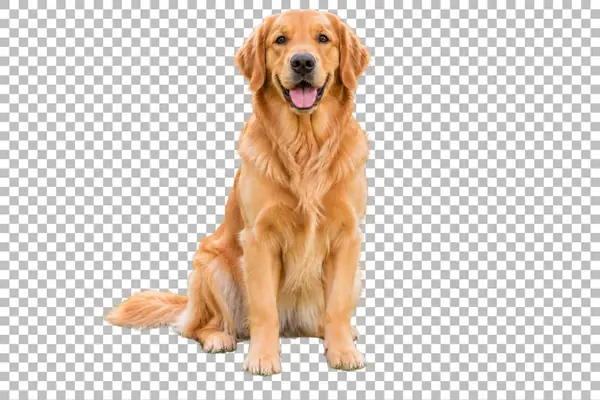
Click Remove BG and choose Smooth edges, the setting for products. The background disappears in a few seconds.
Make the background white
In the Background panel, open Color and choose white. It is pure white: RGB 255, 255, 255.
Fill the frame
Drag the corner handles until the product fills about 85% of the square, and drag it to the middle.
Add a shadow
Click Shadow. Under Properties, choose Product, or Tabletop for things that stand on a table, and set Softness and Darkness. Keep it light on a main photo.
Download
Click Download, choose JPG, PNG or WebP, and download the photo.
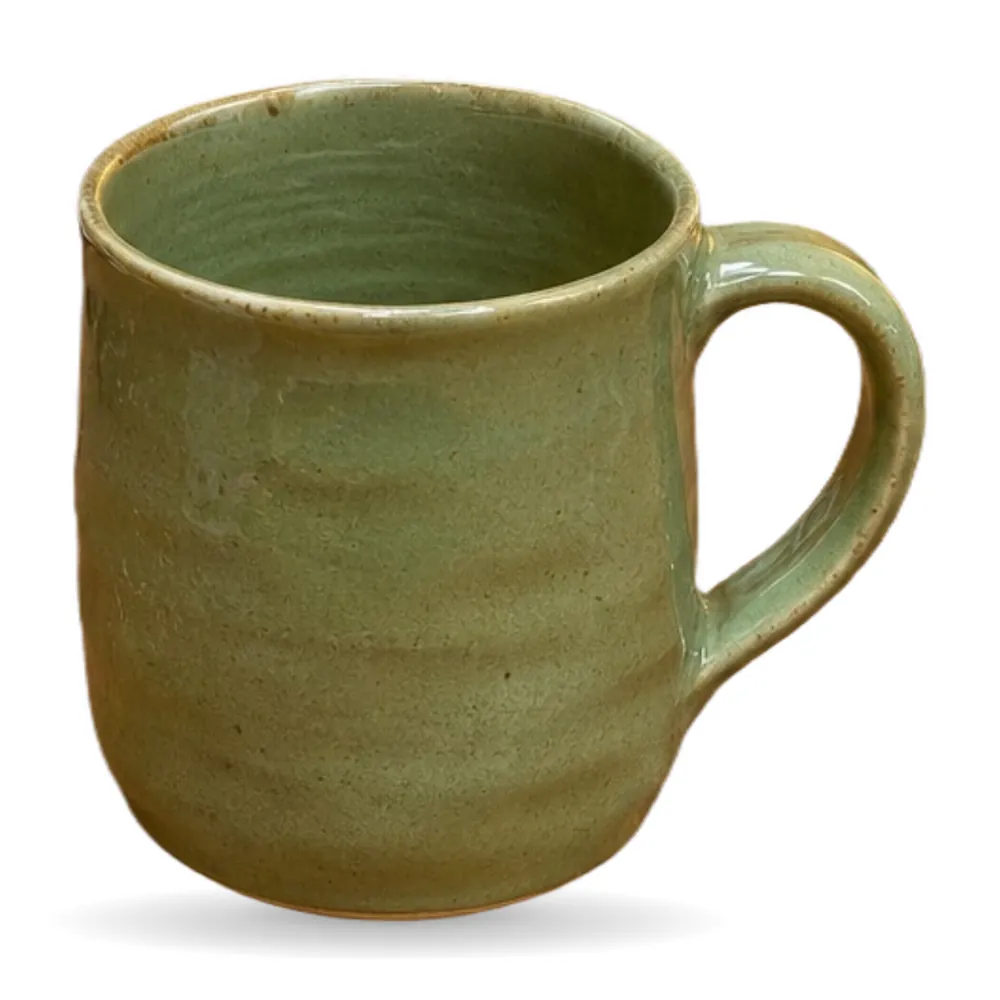
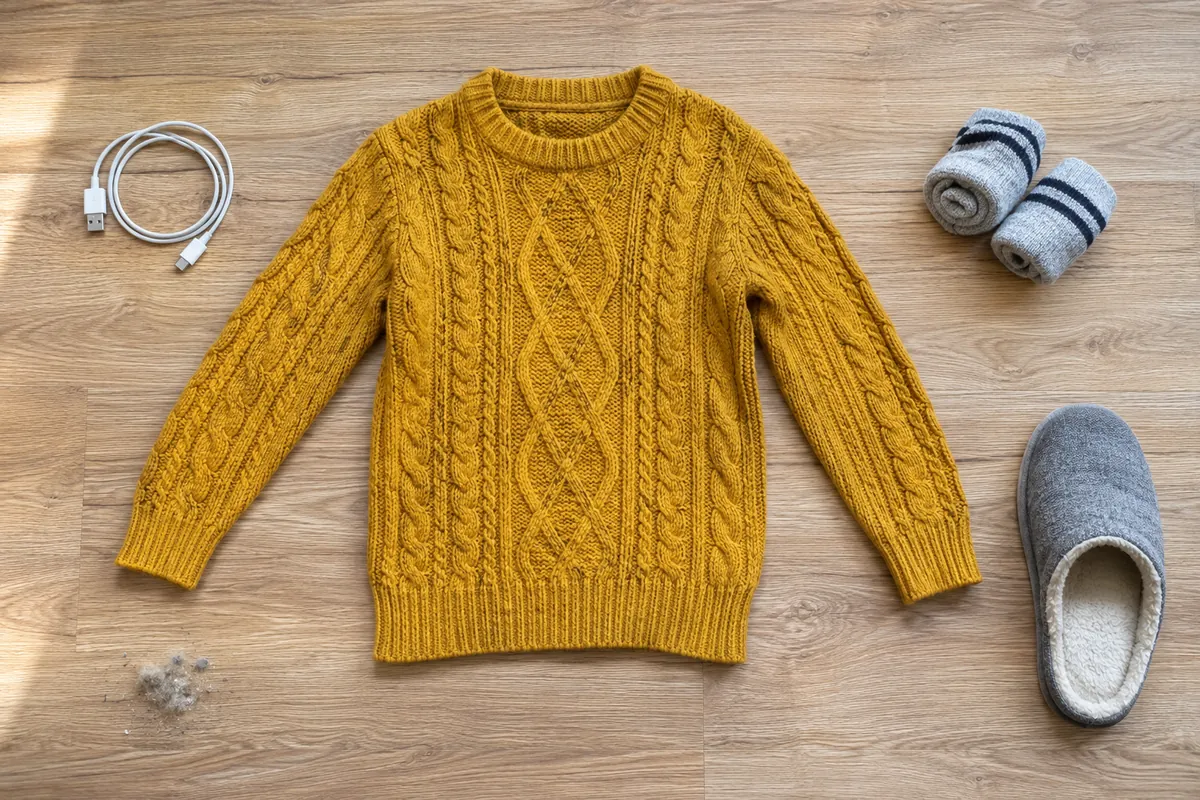
Clear the frame before you shoot. The background remover keeps everything that looks like an object: a cable or a pair of socks next to your product stays in the cut-out.
How do you photograph glossy and reflective products?
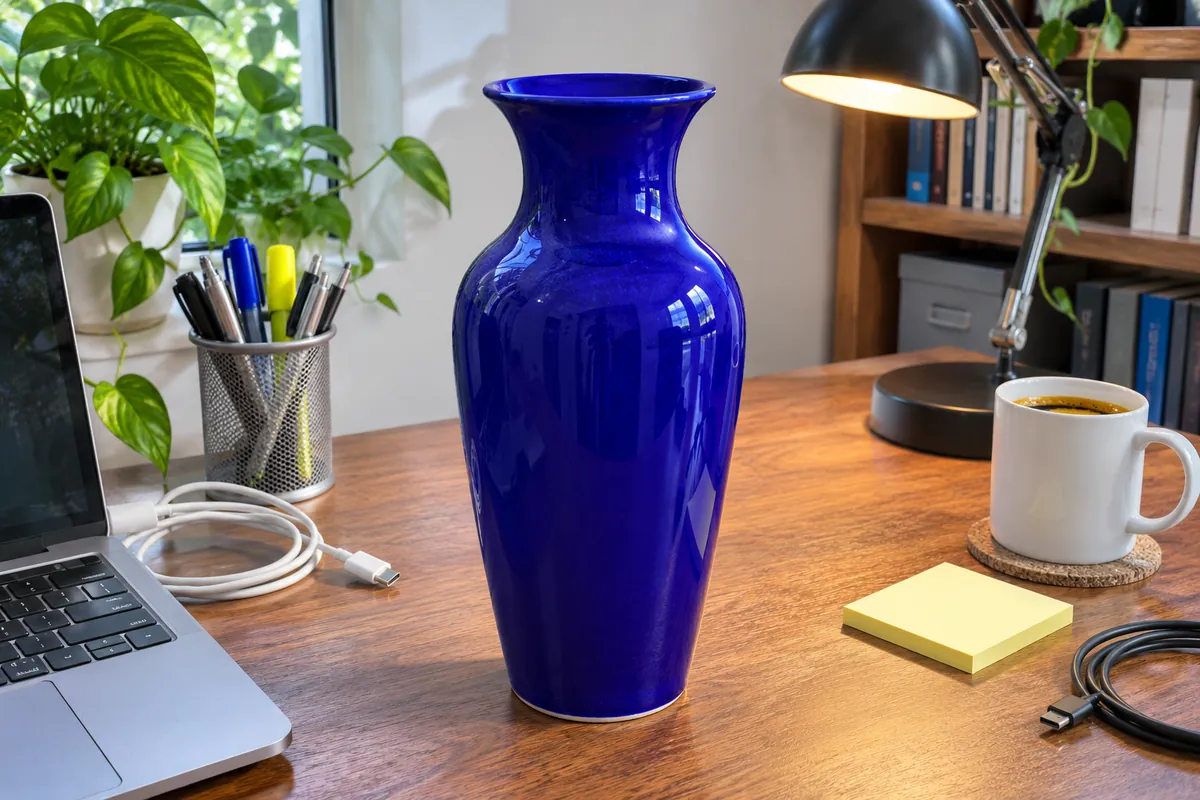
Glass, ceramics, metal and jewellery reflect the whole room, including you and your phone. Shopify’s jewellery photography guide suggests controlling what they reflect:
- A light tent, a box of thin white fabric, softens reflections on polished metal and gems; put the light outside one of its walls.
- A white card bounces light onto the product; a black card does the opposite and deepens shadows and edges.
- Wipe the product every time you touch it, or wear cotton gloves.
- Move the product or the phone a little until the brightest reflections fall where they show the shape, not across the front.
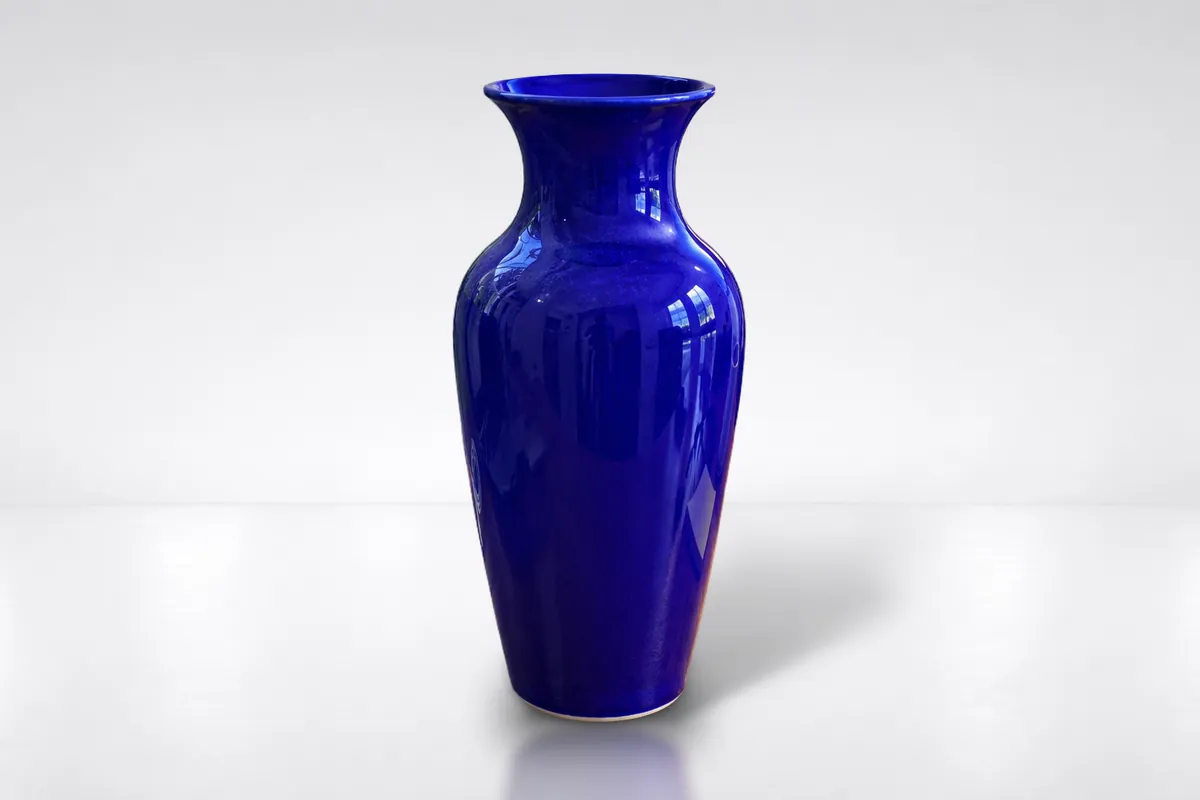
Afterwards, a little Reflection under the product makes it look as if it stands on a glossy surface:
 BeforeAfter
How do you photograph clothes without a mannequin?
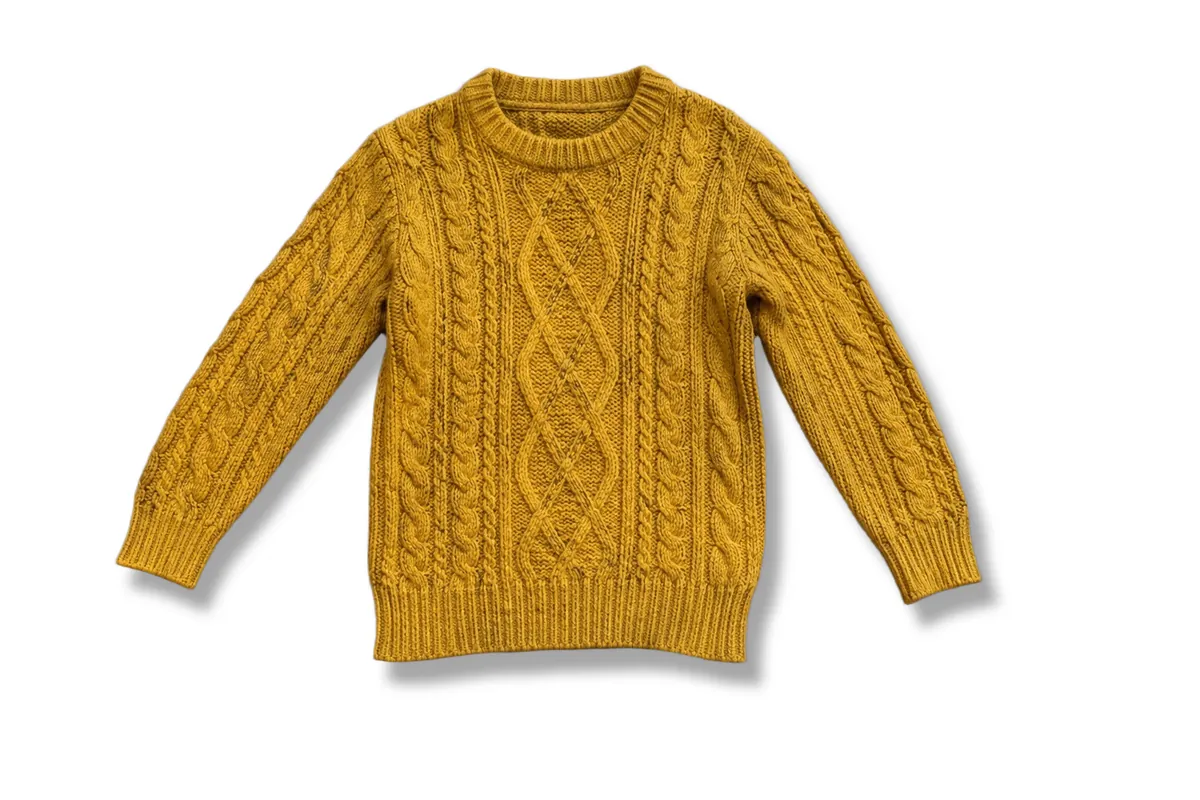
Lay the garment flat and photograph it from straight above: a flat lay. Smooth out the creases, arrange both sleeves the same way, and hold the phone parallel to the floor, so the garment isn’t distorted.
On a white background, the Flat lay shadow lifts the garment slightly off the page, so it looks like fabric rather than a sticker.
 BeforeAfter
How much editing is too much?
Marketplaces allow a new background but not a different product. Etsy says all images must accurately reflect the item’s true appearance, including its colour, condition, scale and materials, and every listing needs at least one unedited photo of the actual item against a real background. eBay doesn’t allow photos that don’t accurately represent the item.
- Replace the background and add shadows, but don’t change the product’s colour, shape or size.
- Show wear, scratches and stains on used items, close up.
- Keep one unedited photo, and your original files.
- If you make a scene with generative AI, Google Merchant Center requires the image to keep its AI metadata, such as the IPTC tag.
Frequently asked questions
What is the best background for product photos?
Pure white for the main photo: Amazon requires it, and Google recommends white or a light neutral colour. For the other photos, a lifestyle background that shows the product in use works well.
Can I take good product photos with a phone?
Yes. With soft window light, a tripod and the main lens, a modern phone takes photos larger than the 2000 pixels Etsy recommends.
What size should product photos be?
A square of 2000 × 2000 pixels suits most marketplaces: Etsy recommends at least 2000 pixels, Amazon allows zoom above 1,000 pixels, Google recommends 1500 × 1500 and Shopify displays 2048 × 2048 best.
How do I make the background pure white?
Remove the background and choose white in the editor’s Color panel. It is exactly RGB 255, 255, 255, which a white sheet of paper never is in a photo.
Should product photos have a shadow?
A soft shadow makes the product look as if it stands on something, not as if it floats. Keep it light and close to the product on a main photo.
Do I have to keep an unedited photo?
On Etsy, yes: every listing needs at least one unedited photo of the actual item on a real background. Elsewhere it is still a good idea.
Is the editor free?
Yes. The Change Background editor is free, and you can download the result as PNG, JPG or WebP. On Remove Background, the preview is free and a full-resolution download costs 1 credit.
Sources
- Amazon: How to take product photos sell.amazon.com
- eBay: Picture policy ebay.com
- Etsy Help: Requirements and best practices for images in your Etsy shop help.etsy.com
- Shopify Help Center: Product media types help.shopify.com
- Google Merchant Center Help: Image link support.google.com
- Google Merchant Center Help: Image best practices support.google.com
- Baymard Institute: Ensure sufficient image resolution and zoom baymard.com
- Baymard Institute: Provide at least one “in scale” image baymard.com
- Shopify: Jewelry photography step-by-step guide shopify.com
The example products are AI-generated photos. Their backgrounds were removed and replaced with ChangeBackground’s own tools, exactly as described above. Marketplace rules come from their own help pages, checked on 25 November 2026.