Photo repair and clean-up
How to remove tourists and other people from your travel photos
Start when you take the photo: go early, wait for gaps and take several shots, so that the people left are few, small and away from your subject. Then paint over them with a free object remover, and the AI fills the space from what is around them. It is most reliable on people in the distance against plain surroundings such as cobblestones, sand, grass or sky. Someone close to the camera, or standing in front of what you photographed, is better cropped out or photographed again.

 BeforeAfter
How do you remove people from a photo for free?
With Remove Object, in your browser, in about a minute. You paint over the people, and the AI replaces them with what is likely to be behind them, built from the pixels around them.
Upload the photo
Open Remove Object and upload your photo, or drop it on the page. JPG, PNG, WebP and HEIC photos up to 30 MB work.
Paint over one or two people
Brush over each person with a small margin around them, including their shadow and any reflection. You don’t need to be precise, but cover all of them.
Remove them
Press Remove and wait a few seconds.
Check and repeat
Hold Compare to see the original, and zoom in. Paint over anything left over, such as a foot or a shadow, and remove it again. Undo takes back a step.
Download
Download the free preview, up to 1280 pixels, or the full-resolution photo for 1 credit. It keeps the size of your photo, up to 4096 pixels on the longest side.

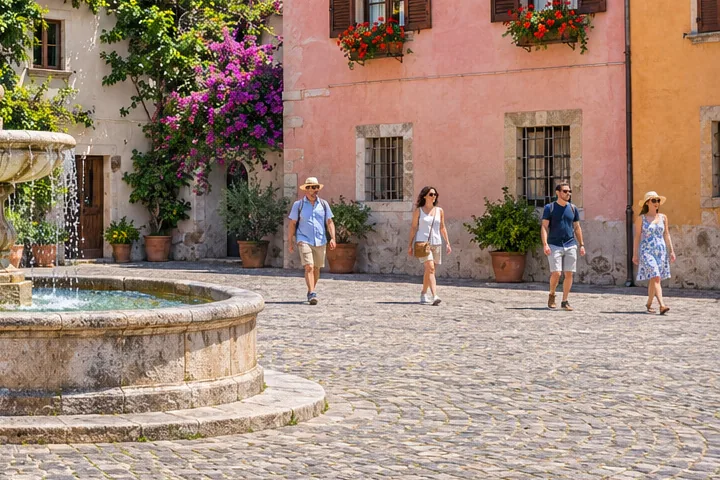 BeforeAfter
Large areas come out soft. When a person covers a big part of the photo, there is little around them to rebuild from. Topaz Labs advises keeping the painted area under a quarter of the image; for anything bigger, crop the photo or take it again.
When does removing people from a photo work?
The AI can only rebuild what it can guess from the surroundings. Adobe says the same of its own Remove tool: it works best when the object is surrounded by a relatively consistent background, like grass, sky, pavement or a plain wall. Research on these “inpainting” models names the hard cases: large missing areas and complex geometric structures.
| In the photo | Result |
|---|---|
| A few small people in the distance, against a wall, a square or a beach | Usually convincing in one pass, as in the square above. |
| Several people spread across the photo | Works well; remove one or two at a time and check each. |
| A dense crowd | Only partly. Remove the nearest few, crop, or use several photos (see below). |
| A person close to the camera | Hard: the area is large and the AI has to invent a lot. Crop, or take the photo again. |
| Someone standing in front of your subject | Hard: the AI has to invent the part of the statue, door or view they hide. Check it closely. |
| Shadows and reflections | Paint over them with the person. Topaz Labs warns that if they are left, the AI may put back something similar. |
How do you photograph busy places with fewer people?
Every person you don’t photograph is one you don’t have to remove. Travel photographers agree on a few habits:
- Go early. National Geographic’s travel tips start with “Get up early, stay out late”, and Digital Photography School calls early morning, before the tourists arrive, one of the best times to photograph busy places.
- Wait for a gap. Even the busiest places have a few minutes in an hour when the flow of people breaks. Set up your shot and wait for them.
- Take several shots. Keep shooting the same view, or use burst mode, as people move. One frame usually has fewer people, or has them where they are easier to remove.
- Frame them out. Compose so that the tourists can be cropped out later, zoom in on details, or step closer and aim up a little so the crowd stays below the frame.
- Or let one stay. A single person shows how big a place is, and as National Geographic notes, an outdoor café may be more interesting crowded with people than empty.
Can several photos make people disappear?
Yes, if they keep moving. Put the camera on a tripod, take a series of photos of the same view a few seconds apart, and combine them in an editor with a median stack mode, such as Affinity Photo or Photoshop. For every pixel, the median keeps the value seen in most of the frames, so people who walk through drop out.
Affinity Photo’s help is clear about the limits: scenes full of moving people cannot be completely emptied, and people who stand still won’t disappear. Take dozens of frames; the busier and slower the crowd, the more frames and the longer the gaps you need.
A long exposure does the same in a single photo. With a 6- to 10-stop ND filter, the shutter stays open for many seconds; Fujifilm explains that people moving through the scene just vanish, because they don’t stay in one place long enough to register. Digital Camera World suggests expecting at least 30 seconds. Anyone who stands still stays in the picture.
No tripod? Take a few handheld shots anyway. If one of them has a gap where it matters, removing the last one or two people is quick.
What about the eraser in your phone’s photo app?
Many recent phones have one, if your model and region support it:
- Apple’s Clean Up in Photos removes distracting objects. It needs Apple Intelligence on an iPhone 15 Pro, iPhone 15 Pro Max or iPhone 16 or later, and isn’t available in all languages or regions.
- Google Photos’ Magic Eraser was designed for people in the background and power lines. Since May 2024 it has been free for all Google Photos users, on devices with at least 3 GB of RAM.
- Samsung Galaxy phones have Object eraser, found under Labs in the Gallery, and newer models have AI Eraser.
Remove Object works in the browser on any phone, tablet or computer, with nothing to install, and keeps photos up to 4096 pixels at full resolution.
When shouldn’t you remove people from a photo?
For your own travel photos, removing strangers is a matter of taste. In news and documentary photography it is not allowed:
- World Press Photo’s contest rules forbid removing people or objects from within the frame, and any use of generative fill disqualifies an entry.
- The NPPA’s Best of Photojournalism rules prohibit using AI tools to add or remove anything, and adding, moving or removing objects or persons.
- The Associated Press says it does not use altered or digitally manipulated images, and Reuters’ handbook has long banned additions or deletions to the subject of a picture.
Other photo contests often have similar rules, so read them before you enter an edited photo. Apple and Google also mark photos edited with their AI tools, with a hidden watermark or metadata. If you share a photo as a record of what happened, say that people were removed.
Frequently asked questions
Is the object remover free?
Yes. You can remove as many objects as you like and download the result for free in preview size, up to 1280 pixels. The full-resolution photo costs 1 credit per photo.
Does it work on an iPhone or an Android phone?
Yes. It runs in the browser on any phone, tablet or computer, with nothing to install, so it doesn’t depend on your phone’s model or region.
How do I remove a person’s shadow?
Paint over the shadow together with the person. If the shadow is left, the AI may rebuild something shaped like the person.
Why does the area look blurry after removing someone?
Because it was large, or had little plain background around it. Remove a large area in smaller parts, or crop the photo instead.
Can it remove a whole crowd?
Partly. Remove a few people at a time and check each result. For a dense crowd, a series of photos combined with a median stack, a long exposure, or a quieter time of day works better.
Does the rest of my photo change?
No. Only the area you paint is replaced. The full-resolution download keeps the size of your photo, up to 4096 pixels on the longest side.
Is it OK to remove people from photos?
For your own photos, yes. News agencies and photo contests such as World Press Photo don’t allow it, so check the rules before you publish or enter an edited photo.
Sources
- National Geographic: Travel photography tips nationalgeographic.com
- Digital Photography School: How to photograph busy tourist sites digital-photography-school.com
- Affinity Photo Help: Object removal affinity.help
- Fujifilm: 10-stop ND filters fujifilm-x.com
- Digital Camera World: Block out distractions with a super-long shutter speed digitalcameraworld.com
- Adobe: How to remove objects in Photoshop Elements adobe.com
- Topaz Labs: Remove Object docs.topazlabs.com
- arXiv: Resolution-robust large mask inpainting with Fourier convolutions (LaMa) arxiv.org
- Apple Support: Clean up photos on iPhone support.apple.com
- Google: Magic Eraser in Google Photos blog.google
- Google: Editing tools available to all Google Photos users blog.google
- Samsung: How to remove unwanted objects from photos on your Galaxy phone samsung.com
- World Press Photo: Contest entry rules worldpressphoto.org
- NPPA: Best of Photojournalism technical guidelines bop.nppa.org
- PBS NewsHour (AP): Why news organizations retracted the Princess of Wales photo pbs.org
- Reuters Handbook of Journalism (2008 edition) mediareform.org.uk
The square is an AI-generated photo. The tourists were removed with ChangeBackground’s own Remove Object tool, exactly as described above, in one pass. Rules and tips come from the linked pages, checked on 25 November 2026.